
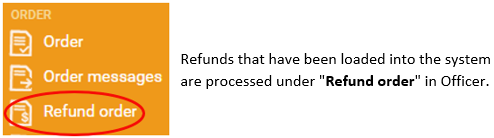
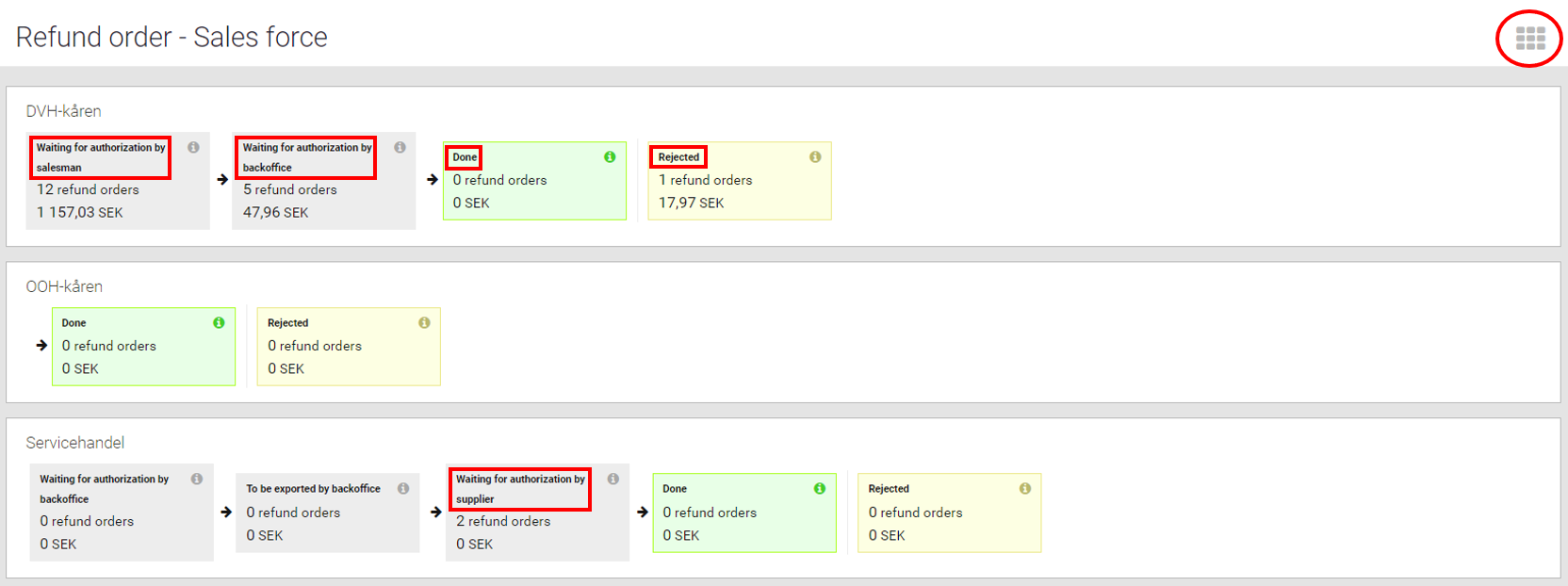
You can choose to view the refunds according to the sales force or the supplier. Click on the  icon in the upper right corner to switch between the views.
All refunds are processed in one or more stages depending on the individual company's routines. Click on a stage to see which refunds are being processed.
Click on the  icon in the upper right corner to export refunds to Excel.
Click on the icon to the left of the refund to see a preview on the refund. Use the up and down arrows on your keyboard to navigate through the list. Use space on your keyboard to select
  a refund.
Tabs available for refunds:
- Summary - Summary of all refunds.
- Exported and archived refund orders - Copies of archived refunds that have been exported in connection with certification. Note that an archive can contain multiple refunds if they are made at the same time.

Different stages (in Summary tab):
- Waiting for authorization by salesman - Refunds that have not yet been verified by the salesman.
- Waiting for authorization by backoffice - Refunds that have not yet been verified by the office.
- Waiting for authorization by supplier - Refunds that have not yet been verified by the supplier.
- Done - Refunds that have gone through the required stages.
- Rejected - Refunds which have been denied approval at any previous stage.
Click on a refund in one of the "Waiting for authorization" - stages to display the refund object menu and select one of the following options: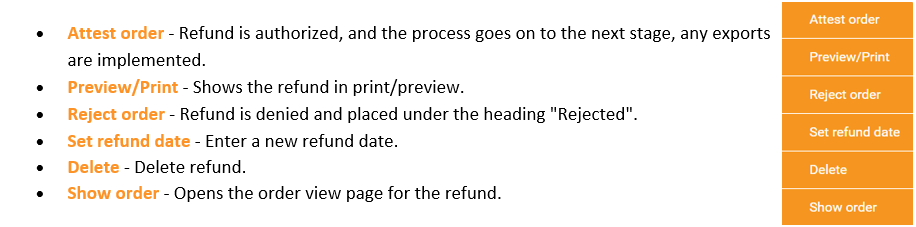
If you are authorized, and want to undo a rejected refund:
Click on the refund in the "Rejected" stage and choose Reactivate order. The reactivated refund will then end up in the "Waiting for authorization by backoffice" stage.
If you are not authorized to do this, please contact your KAM for further help!